A name can
be ambiguous.
A preset search can also match other people or meanings. That could surface sexualized, violent, or extremist content. The actual results depend on factors including the full query and the filters in use.
WARNING · WINDOWS & BING
My computer. My choice.
A click to sign in to Windows. Then an unintended Bing search. Opening web content should require a clear, recognizable choice.
Get to the password field.
After signing in
A PRESET SEARCH
Reported sequence · simplified illustration
No connection to Bing. No live search.
A click alone does not tell you what a person wants.
CONTROL BEFORE CONVENIENCE01 / THE INCIDENT
The user wanted to sign in. He had neither typed the search term nor intentionally selected it.
According to his account, clicking the lock screen did not clearly indicate that he was also selecting web content. After he entered his password, the Bing page shown below appeared.
The click was intended to bring up the password field. A web search was not intended.
User’s accountBing displays the search, an AI summary, shopping ads, and additional search suggestions.
ScreenshotWhich Windows element triggered the request, and how the request was recorded or linked to an account.
Requires technical investigationTHE SCREENSHOT
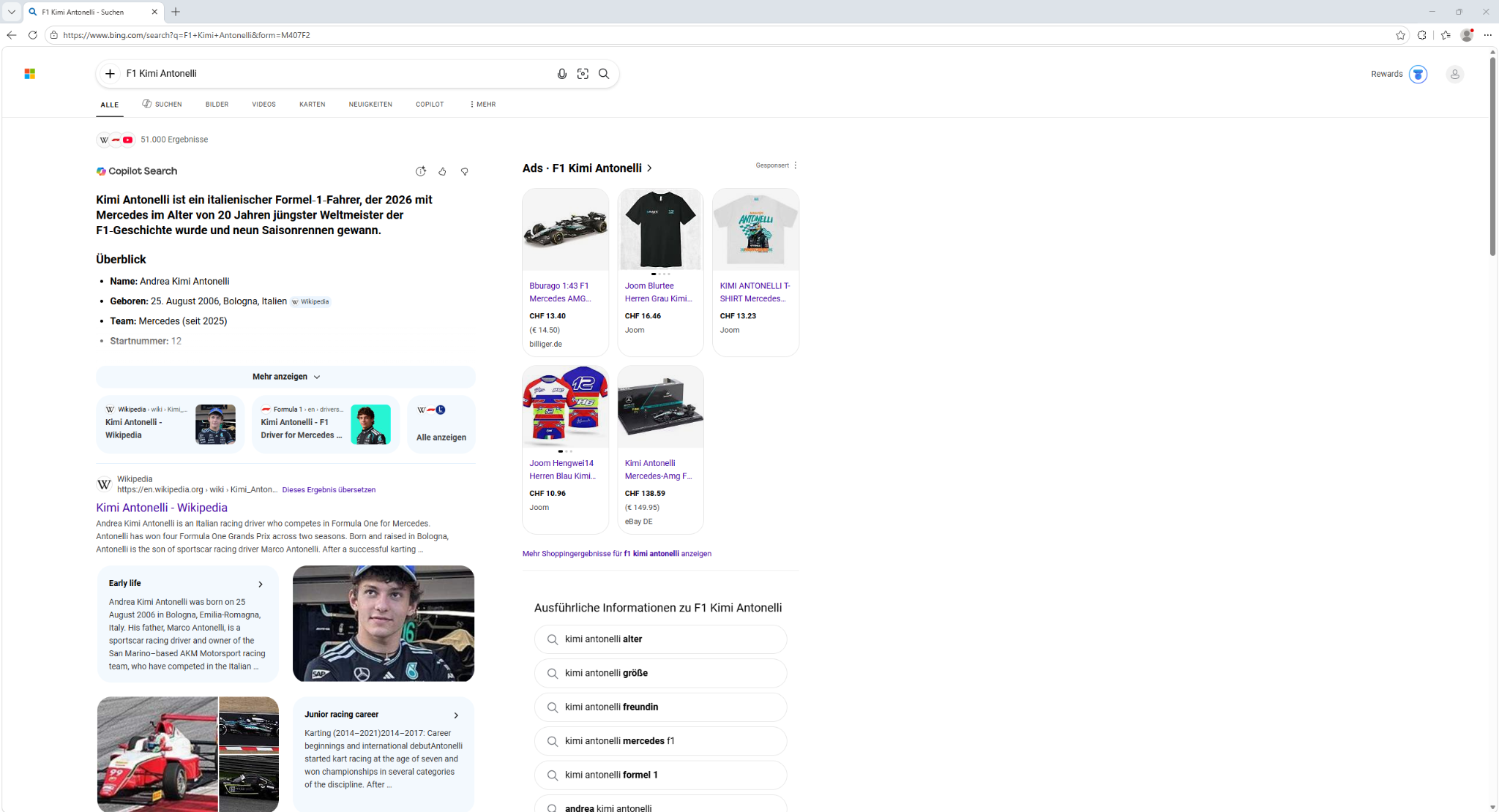
The search field shows “F1 Kimi Antonelli.” The fact that this page opened does not, by itself, establish an intentional interest in the topic.
https://www.bing.com/search?q=F1+Kimi+Antonelli&form=M407F2The parameter q contains the search term. The code form=M407F2 alone does not establish which process or button triggered the request. This report has no reliable official explanation of what this code identifies.
02 / PERSONAL CHOICE
Even a harmless topic can be unwanted. People unlocking their computers should decide for themselves whether to open a search engine—and what to search for.
An extreme outcome does not have to occur for this concern to matter. The unexpected web request already raises the question: Where was the clear choice to do this?
A preset search can also match other people or meanings. That could surface sexualized, violent, or extremist content. The actual results depend on factors including the full query and the filters in use.
A search request can leave a digital record. Microsoft describes storing search terms and other data. Whether this particular request was linked to an account or an interest profile has not been established. [03]
Additional content can become visible during a presentation, in a classroom, or around other people. The person using the device should be able to choose when to open web content and what to open.
An ambiguous query could also return results about Osama bin Laden. Additional terms such as “F1” and a last name can narrow the meaning; the name alone does not determine what the results will contain. This example illustrates the risk of an unwanted association. It is not a search result observed in this incident.
These are possible risks, not claims about the results shown. The screenshot does not show pornographic or extremist content. Even a mention of a notorious figure would not, by itself, establish that content was illegal or that the user had an interest in it.
A content filter cannot replace a choice. Microsoft acknowledges that SafeSearch does not catch everything. A filter also does not prevent the unwanted request itself. [02]
03 / THE DEMAND
Signing in should give people access to their own computers. Opening additional web content should require a clear, recognizable choice.
Copy the statementBefore a click, it must be clear that the action will open a website or a search.
The ordinary click to reach the password field should not also select web content.
These features must be easy to turn off and respect the user’s chosen safety and privacy settings.
Automatic or accidental requests should not be treated as intentional expressions of search interest.
04 / TAKE ACTION
These steps can help document what happened and reduce lock screen content. Setting names may vary by Windows version.
Note the time, Windows version, full URL, and visible lock screen elements. If possible, record the sequence with a screen recording or a camera.
Check for personal information before sharing. Do not record passwords.
Settings → Personalization → Lock screen
Turn off widgets. If “Lock screen status” appears instead, choose “None.” Use your own picture and turn off the option for facts, tips, and other content, if available. [01]
Bing SafeSearch offers a “Strict” setting for explicit text, images, and videos. It reduces those results but does not replace control over whether a search starts in the first place. [02]
This site does not change any settings on your device.
05 / CHECK THE SOURCES
The user’s account describes the sequence. The screenshot documents the results page visible afterward. The primary sources explain the features and the legal framework.
The design raises questions about interface transparency and consumer protection. This screenshot alone does not establish that Microsoft violated the law.
Section 230 protection does not automatically disappear. U.S. law distinguishes responsibility for third-party content from a provider’s own conduct. Anderson v. TikTok concerns a specific algorithmic recommendation and does not establish a blanket liability rule for every automatic search. [04] [05]
Unfairness requires a case-specific analysis. 15 U.S.C. § 45(n) requires substantial actual or likely injury that consumers cannot reasonably avoid and that is not outweighed by benefits to consumers or competition. The hypothetical possibility of an unwanted result does not, by itself, establish these conditions. [06]
This site calls for clear explanations and meaningful user control. It does not claim that a court has found liability in this Windows incident.
Describes opening widget content after sign-in and the available lock screen settings.
Explains the filter levels. The Bing settings page notes the limits of filtering.
Describes search data and its storage. Does not establish a specific account association in this case.
Statutory protection concerning third-party content; definitions and exceptions.
A case-specific ruling on recommendations, not a decision about Windows or Bing. PDF.
Requirements for an unfair business practice. See also: FTC Policy Statement.
External sources open in a new tab only when clicked.
ZERO TRUST LAB
This independent informational subsite is a project of Zero Trust Lab. It is not an official Microsoft website and does not claim Microsoft’s endorsement. Rights to third-party names, trademarks, and material remain with their respective owners.
The content provides general information and education, not individualized legal advice. Errors and later changes are possible. No warranty is given for accuracy, completeness, currency, or suitability for a particular purpose. Any limitation of liability applies only to the extent permitted by law; mandatory statutory liability remains unaffected.
The site code sets no cookies and contains no analytics, advertising scripts, or externally loaded fonts. The screenshot is a local image; this page does not run a Bing search or load live Bing content. Hosting and access services may process technical connection data and cookies. External websites have their own policies.
Questions or feedback: zerotrustlab@mailbox.org